

- Open Ara, review how the coding-agent loop works, and sign in with an available method.
- Choose New task and describe the result you want.
- Name a repository or Device only when the task needs one. Otherwise, Ara can start in a scratch workspace.
Network reliability diagnostics
Ara’s public site publishes the browser-standard Network Error Logging (NEL) policy so we can identify DNS, connection, and TLS failures that occur before the app can load. A browser may send an anonymous network-failure report to Ara’s telemetry endpoint. The report contains the failed URL and network error category, plus a short-lived random cohort value and coarse edge location for operational correlation when the browser already has an authenticated telemetry cohort. Signed-out reports stay anonymous. Reports do not include task content, raw IP addresses, or arbitrary browser cookies. They are used only to operate and improve public-site availability. Current service health and incident history are published at status.ara.so. Ara also checks DNS and HTTPS every 15 minutes from separate worldwide mixes of consumer and datacenter networks. A 10% target-level failure rate is confirmed with a second fresh probe cohort before it is treated as an availability incident. Probe rows explicitly reported offline or as internal provider failures are excluded from the customer-failure rate; if too few consumer or datacenter nodes remain, the sample is reported as inconclusive instead of healthy. For example: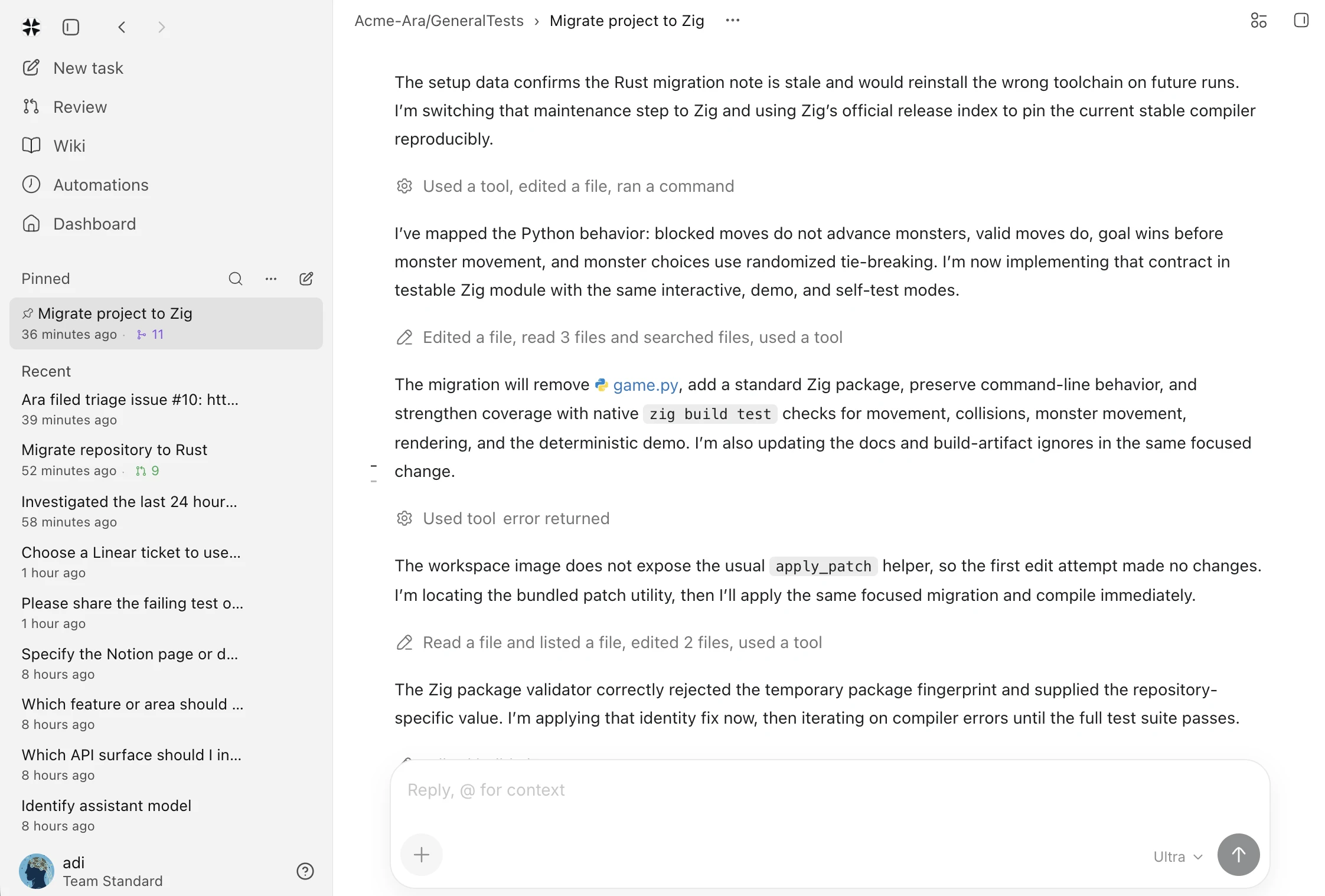 For work that runs longer, return to the session to follow progress, inspect
evidence, and decide what happens next. Add organization context when every task
should begin with the same company background.
For work that runs longer, return to the session to follow progress, inspect
evidence, and decide what happens next. Add organization context when every task
should begin with the same company background.
Choose an interface
To connect a Mac, install the CLI and follow the sign-in prompt:
Use the API
Outside agents use the API quickstart: mint anara_ key
from Settings → Developers, call GET /v3/self, create a session, and
poll until exit, error, or suspended. Public customer MCP is retired;
do not connect Cursor, Claude, or Grok Bot to /mcp/ara.
scopes.
When a documented endpoint needs another capability, Ara returns
missing_scope with the exact required_scope; create or rotate a key
with that capability rather than retrying the request. See the
endpoint reference or download the
OpenAPI specification.
Models and keys
Choose a model in the task composer, or connect a provider in Settings → Models & credentials. Provider keys are encrypted and stay inside Ara’s service boundary; they are not added to a task, terminal, or command line. Anthropic subscriptions use Connect with Ara CLI. The workspace gives you one short-lived setup command; Ara CLI opens Anthropic in your browser, receives the localhost callback on your computer, and stores the resulting credential encrypted in that workspace. You do not copy a callback URL or provider token. The command contains an expiring Ara workspace-pairing code and, when you are reconnecting, the existing non-secret account slot. Ara uses the model you selected. If a provider is unavailable, the task shows the failure instead of silently switching models. Model usage and sandbox time draw from your workspace credit balance. For supported subscriptions, Models & credentials shows a small usage ring with the remaining allowance and next reset on hover. Finite OpenRouter key budgets use the same ring; providers without a reliable usage endpoint stay connected without an estimated balance.Customize a workspace
Open Customize to manage workspace integrations, skills, code settings, billing, and history. Workspace members can rename the workspace and connect a model provider; only owners and admins can replace or remove credentials that are already shared with the workspace. In Customize → Skills, choose Create skill to start a task with Ara’s built-in skill creator selected. Describe the behavior you want in ordinary language; Ara turns it into one reusable Workspace skill and confirms its name and identifier after creation.Continue with your task
- Review the session to see the conversation, changes, commands, and evidence together before accepting a result.
- Chat condenses completed activity into a summary of explored files, searches, fetches, and commands. Expand the summary to see chronological actions, then expand an action to inspect its bounded command or program, output, diff, or error; use the copy action in its result header to copy the complete invocation and result. Set Activity detail under Settings → Appearance to Minimal, Normal, or Verbose to choose which of those three levels opens by default.
- Use Browse (
⌘K) from the chat header to open the Files view, then switch to messages or actions when needed. Selecting a workspace file opens its full source view beside the repository tree. Selecting an Edited files card opens the matching full diff view with the changed-file tree. Open Computer for the workspace view; its full-width Terminal bar expands upward from the bottom and collapses from the top of the open terminal. - Open Progress to inspect the retained trace without leaving your workspace, then return to Chat for the transcript. Progress replays each turn as the actions Ara actually took: safe context provenance, public reasoning, operations, state changes, delegation, and the final result.
- Each operation shows its approved command or program above its result. Tool start, update, and completion frames collapse into one operation.
- Progress shows compact, safe context provenance—such as model requests, loaded skills, memory items, attachments, and file excerpts—rather than raw system prompts, private memory, credentials, or file bodies.
- Connect repositories, plugins, and approved Devices only when the task needs that context.
- Keep credentials in workspace settings rather than source code, prompts, or terminal history.